Review applicants
See who applied to an opening and how well they fit, then accept them — one or several at once — or close their application.
When a student applies to one of your published openings, the application appears on that opening’s page in InternROI. There you accept the applicant onto one of your programmes — which invites them to it — or close the application. Only your company’s admins see applications and answer them.
When someone applies
Every admin of your company is sent a notification, A new application for …, naming the applicant — in Notifications and by email, as every notification is. Choose it to open the opening. See Notifications.
Applicants apply with their own InternROI account, and must have added their date of birth to their profile first — and, if they are under 18, a parent or guardian. Your own admins, and anyone with a current place on one of your programmes, cannot apply to your openings. Interns whose placement with you is over can apply again.
Their side, step by step: Apply for a placement.
See who applied
- Choose Openings in the menu, then the opening.
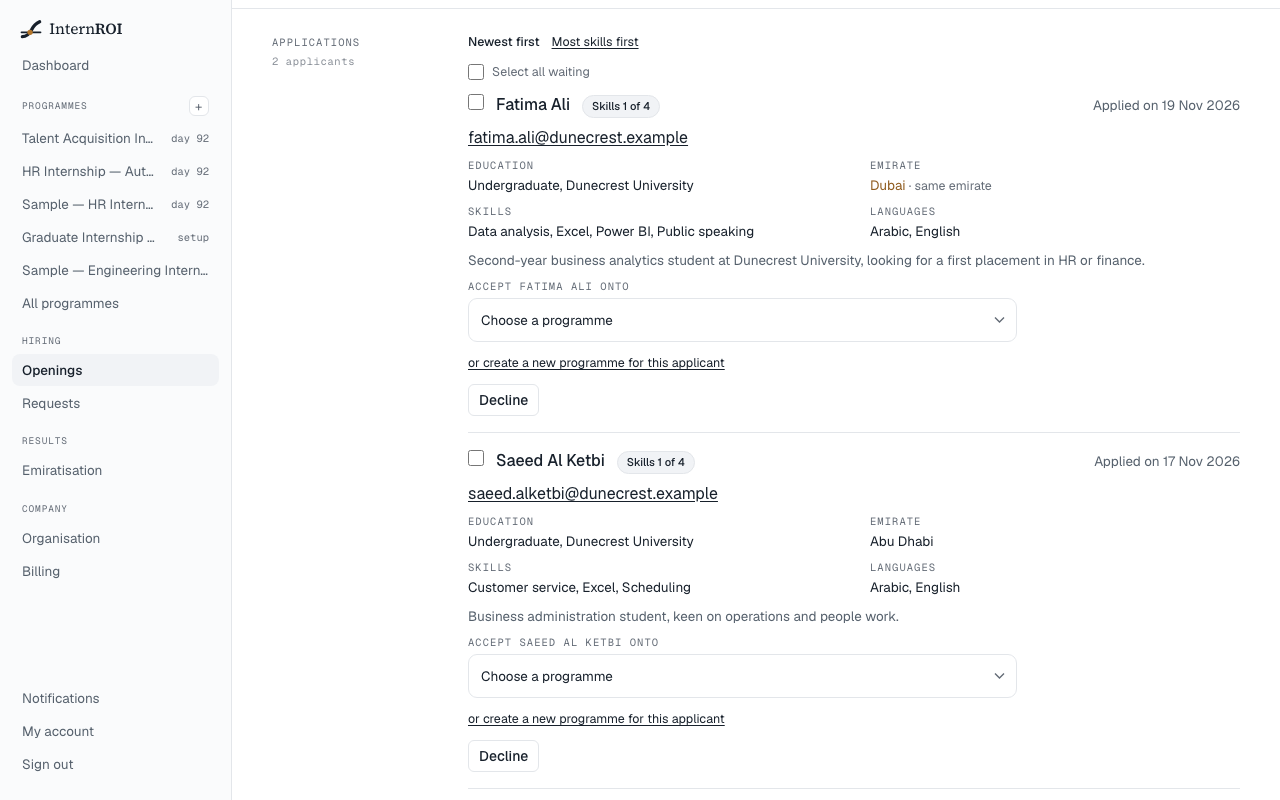
- Under Applications, you see everyone who applied. Beside the heading is how many are waiting for your answer — for example, 2 applicants.
For each applicant waiting for an answer you see what the apply page told them you would: their name, Applied on …, their email address, and — where their profile gives them — Education, Emirate, Skills, Languages and their summary. Under 18 marks an applicant who is under 18 today; you never see a date of birth. Age not given means their profile no longer says.
When the opening lists skills, each applicant waiting for an answer shows Skills 3 of 5 — how many of the opening’s skills they list — and their emirate is in gold when it is the opening’s. Most skills first, above the list, puts those who list the most of the opening’s skills first, newest first among equals; Newest first puts the list back. Nothing else goes into that order.
Until someone applies, the band reads Nobody has applied yet. A draft has no Applications band — nobody can apply to it.
Accept an applicant
Accepting puts the applicant on a programme’s roster and invites them to it.
- Under the applicant, in Accept … onto, choose a programme. The list holds your programmes whose roster is still open — not ended or archived, and never a sample programme. Each says its months and how many places are taken, for example *Summer Internship 2027 · Jun–Jul · 7 of 12 taken*; programmes whose dates cover the opening’s come first.
- Supervisor · optional lists that programme’s supervisors, the one with the fewest interns first. Choose one, or leave Choose later. A programme with no supervisors says so instead.
- Choose Invite … to … — for example, Invite Fatima Ali to Summer Internship 2027.
They are added to the programme’s Interns roster with their account’s name and email, and sent an invitation by email. If their address is already on that roster and they have not joined, that place is used rather than a second one, and a supervisor it already has stays. One line then says what happens next — for example *Invited to Summer Internship 2027. Fatima Ali joins the roster on accepting the email.* — and, if you chose no supervisor, offers Give Fatima Ali a supervisor →. The application reads Accepted — invited to ….
They are on the roster only once they accept the invitation themselves. Until then they can still withdraw their application; if they do, the invitation is revoked, their place comes off the roster, and the application reads Withdrawn.
On the roster they are like any intern you add yourself. A new place without a supervisor chosen has none yet — give them one, see Add supervisors and assign them. A place they had before, and are given back (see Withdrawn applications), keeps the supervisor it last had, if that supervisor is still on the roster. On a programme that is already running, they are given all its tasks as soon as you accept them.
If none of your programmes can take an intern, you see None of your programmes can take an applicant — a sample, or one that has finished, cannot. in place of the list, with Create a programme for this applicant. Where some can, the same is offered under the list as or create a new programme for this applicant. Either opens a new programme filled from the opening — its dates, hours a day, emirate and, where it matches, department — and after Create programme you come back to the applicant with the new programme chosen. See Create a programme.
Accept several at once
Tick the applicants you want — or Select all waiting — and a bar appears at the foot of the band:
- In Accept onto, choose the programme.
- Under Supervisors, choose Share them out evenly (each, in the order shown, to the supervisor with the fewest at that point), Leave for later, or one supervisor for all. A programme with no supervisors offers only Leave for later.
- Choose Invite 3 to ….
Each is accepted in turn, as a single Accept would, and the bar counts them — 2 of 3. When it is done, a line says how many were invited; anyone who could not be is named with the reason, and the rest are still invited. If your plan covers no more interns, it stops there and says who was not invited.
Close the 3 selected closes them all, after the same question a single Decline asks.
When the programme is full
After an Accept, if the programme now has all the interns it planned and the opening is still published, the line says so — for example *Summer Internship 2027 is full: 12 of 12 places.* — with Close this opening and, when others are still waiting, close the 4 still waiting. It is only a suggestion: you can accept more than you planned.
Where an accepted applicant stands
- Accepted — invited to … — the invitation is open. The chip reads Accepted.
- On the roster of … — they accepted it. The chip reads On the roster.
- Accepted, but the invitation has expired or was revoked — send it again from …’s roster — invitations last 14 days. Choose Send it again under the line to send a fresh invitation from here; it reads Sent again. It lasts 14 days. You can also choose Resend on their row on the programme’s Interns screen, or Invite if it was revoked. See Invite people.
- Accepted — the place is no longer on …’s roster — they were removed from it, or the programme has ended or was deleted.
You see an accepted applicant’s details only while their invitation is open or they are on the roster. Otherwise the application reads The applicant’s details are no longer shown while their place is not open.
Decline an application
- Under the applicant, choose Decline.
- A question appears: … will see “Closed”, and this cannot be undone. Choose Close this application, or Cancel.
The applicant sees Closed and nothing more — no email or notification is sent to them — and they cannot apply to this opening again. Your list reads You closed this application. The applicant’s details are no longer shown., with the chip Closed.
Withdrawn applications
An applicant can withdraw while their application waits for your answer, and after you accept them until they join. The application then reads An applicant withdrew. Their details are no longer shown., with the chip Withdrawn. If they apply again, it is back in the list waiting for your answer, and you are told again — at most once a day. You can accept them again, onto the same programme or another: a place on that programme that no account ever held — one they gave up by withdrawing, or that was removed from the roster before they joined — is opened for them again, with the tasks it had.
Messages you might see
- Accepted — the email could not be sent; they can accept from their home page, or press Resend on the programme’s roster for a link to copy. — the acceptance stands. On the programme’s Interns screen, choose Resend on their row; a Copy link button then appears — Copy link (no email sent) if the email failed again — so you can pass the link on yourself.
- Accepted, but the invitation could not be sent — send it from the programme’s roster. — the acceptance stands. Choose Invite on their row.
- Your plan covers … intern(s) and … are already on running programmes. Add interns to your plan first — your billing screen says how. — your plan is full. See Change your plan.
- This programme has finished — its roster can no longer be changed. — choose a programme that is still open.
- This person is already on that programme. — they have joined it already.
- This person is on that programme as a supervisor. — choose another programme.
- This person was removed from that programme’s roster after joining it, so they cannot be invited to it again. — they joined that programme once and were removed. Choose another programme.
- That application has already been answered, or its applicant withdrew it. — another admin answered it, or the applicant withdrew, a moment ago. Reload the page.
- A refusal ending Nothing was sent, and the place made for them on the roster has been taken back. — nothing changed, and you can try again.
- The applications could not be read just now. Please reload the page.