Notifications
What you are told about, where it arrives, and how to turn it off.
What you are told about
- Interns: when tasks are assigned to you — or, if you join a programme that has already started, the tasks waiting for you — when your work is accepted, and when your supervisor asks for changes.
- Supervisors: when one of your interns submits or resubmits work.
- Admins: billing and renewal notices, verification decisions, and a programme reaching its planned end date. These are always sent.
Where they arrive
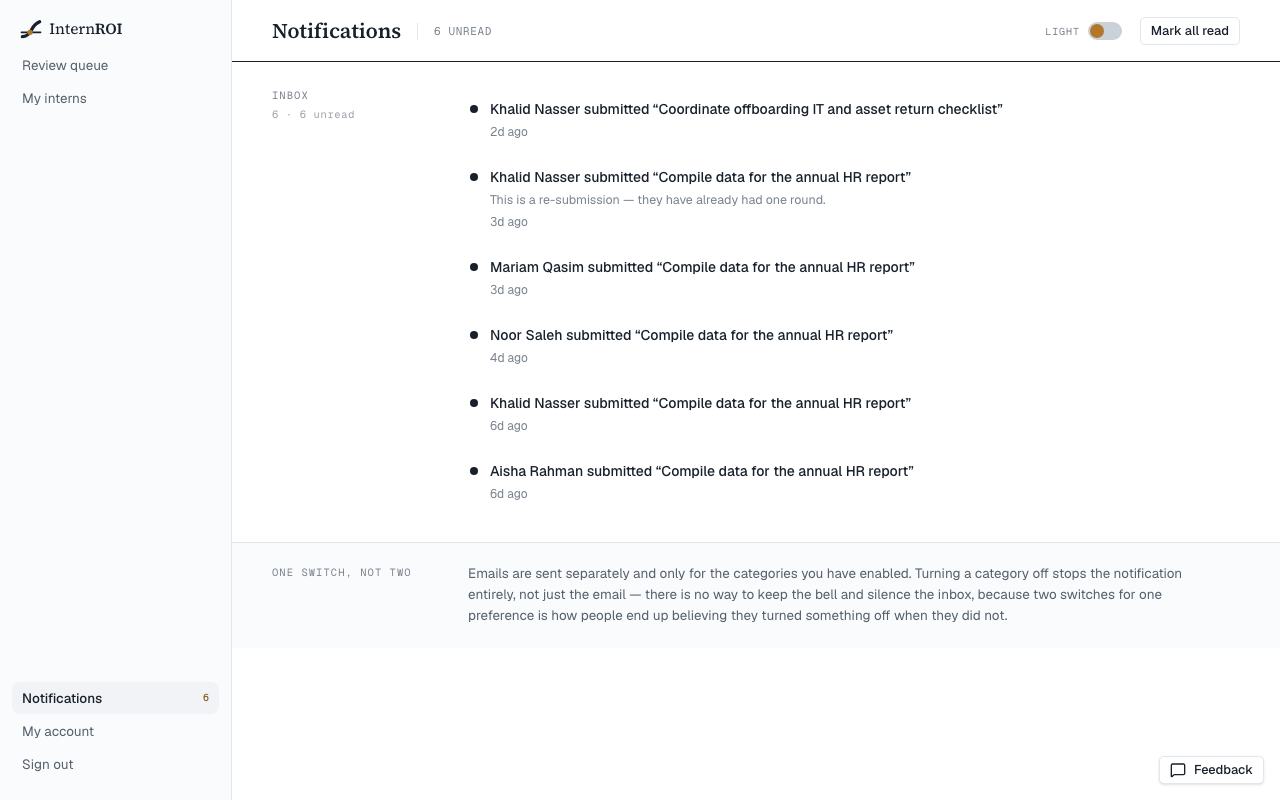
- In the app — choose Notifications at the foot of the menu. The number beside it is how many are unread. Choose a notification to go to it; Mark all read (1) clears them all.
- By email — each notification is also emailed to you, within a few minutes.
Turn them off
- Go to My account.
- Under Notifications, switch off the kind you don’t want. The switches you see depend on your role:
- Interns: Tasks assigned to me and Decisions on my work (accept / re-do).
- Supervisors: Work submitted for my review.
- Someone who is both: Tasks assigned to me and Reviews — decisions on my work, and work submitted for my review.
Turning a switch off stops it completely — in the app and by email.
Admins who are not on a programme’s roster see no switches: the notices admins get are always sent.