Publish an internship opening
Write an opening, list it on Opportunities Nearby for students to apply to, and close or reopen it.
An opening is a placement your company offers. Once you publish it, it is listed on opportunities-nearby.com, where students find it and apply with an InternROI account. Only your company’s admins write, publish and see openings.
Write an opening
- Choose Openings in the menu, under All programmes.
- Choose New opening.
- Fill in the form. Only Title is required:
- To start faster, use the Start band. Under Quick fill, write the opening in one line — for example “Data analyst intern, Dubai, from June for 8 weeks, 8 hours a day, Excel and SQL” — check what it Reads as, and choose Fill. Or choose one of the common roles, which fills the title, department, a description and six skills, or one of your own openings under Or one of yours, which copies everything but its dates. From a programme lists your programmes that have not ended: one fills the department, the emirate (when the programme’s location names one), the dates (when they are still ahead) and the hours a day — never the title or skills. Undo, in the bar at the foot of the form, takes the last of these back.
- Title — up to 200 characters, for example “Data analyst intern”.
- Department — up to 80 characters — and Emirate: choose one of the seven, or choose it again to clear it. A new opening starts on the emirate of your last one.
- Under When: under Dates, choose the month the placement starts and then the month it ends, or type the Start date and End date. Hours a day is a row of buttons from 1 to 12. Leave what is not settled yet. Places is how many people you will take, and Apply by the last day anyone can apply; both are optional. When as many people have joined as there are places, or the apply-by day has passed, the opening closes itself and you are told. To reopen it, give it more places or a later date first.
- Under Skills: type one in Add a skill and press Enter, or paste a list separated by commas. Up to 12 skills, 60 characters each. Choose × beside a skill to remove it, or a Suggested skill to add it.
- Under Who it’s for (optional): press the star on up to three skills to make them must-haves — each counts twice — and choose the Level (High school, Vocational school, Undergraduate, Postgraduate) and Languages it asks for. Leave any of them open and it is left out. When applicant fit is switched on, How applicants will score shows the parts this opening counts and three made-up applicants scored as you go; the weights are set by InternROI, the same for every opening.
- Under Description: up to 4,000 characters of plain text. Draft it for me writes a first version from the fields above it — read it through before you save. Outline adds the three things a student looks for — what the intern will do, who they will work with, and what they will learn — and the line under the box ticks each one the description covers.
- Choose Save as a draft, or press Cmd+Enter (Ctrl+Enter on Windows).
The opening’s own page opens. Its status reads A draft. Nobody outside your company sees it until you publish it.
Publish it
On the opening’s page, choose Publish. The status changes to Published, with the day it was first published.
Once your company is verified, the opening is listed on opportunities-nearby.com with your company’s name, everything you filled in, and the day it was first published. A student who wants to apply is taken to the opening’s page on InternROI, where they sign in — or create an intern account — and choose Apply. A change can take a few minutes to show on opportunities-nearby.com.
An opening stays listed until you close it, or until its End date has passed — it is still listed on the end date itself. After that it is no longer listed, though it still reads Published here.
Change an opening
The form stays on the opening’s page, below its status, whatever the status is. Change what you need and choose Save changes; you will see Saved. A published opening’s listing changes too.
Close it, or publish it again
- Close takes a published opening off opportunities-nearby.com, and nobody new can apply. The status reads Closed: it is no longer listed. You can still answer the applications it already has — see Review applicants.
- Publish again lists a closed opening once more. It keeps the day it was first published, so it does not show as new.
Delete a draft
A draft that was never published can be deleted. Choose Delete draft, then Delete this draft to confirm, or Cancel. A deleted draft does not come back. A published opening cannot be deleted — close it instead.
Share it
While an opening is listed, its page offers Copy the apply link — the address students apply at — and Print a poster: one A4 page with your company’s name and logo, the opening, up to six of its skills, and a QR code for the apply link. Your browser prints it. Until the opening is listed, a line says why these are not shown yet.
The Openings list
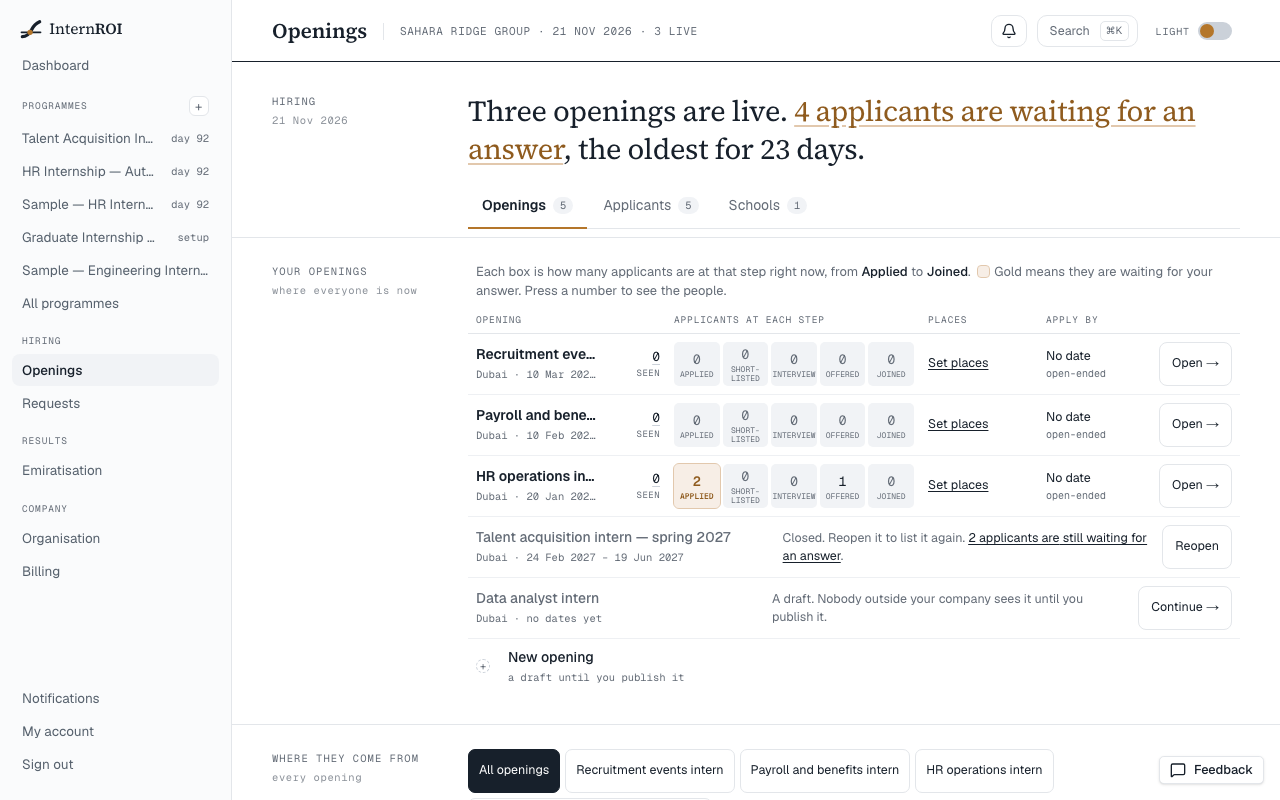
Openings opens with one sentence: how many openings are live, how many applicants are waiting for your answer and how long the oldest has waited. Under it are three tabs: Openings, Applicants and Schools.
Openings has a row for each live opening, with three boxes: how many applicants are at Applied, Offered and Joined right now. Applied is gold while anyone waits for your answer. Press a box to see those people on Applicants, or Open → for the opening itself. Closed openings follow, with Reopen; then drafts, with Continue →; and last, New opening.
Each live row also shows Seen — how often its apply page was opened — and its Places and Apply by. Press Seen for Where they come from: how many opened the page and applied from Opportunities Nearby, the poster's QR code, a copied link, or a link you named. To name one, type where it will go (a career fair, a newsletter) and choose Make a link, then copy the link it gives. Only numbers are kept: no cookies, and nothing about who opened the page.
Applicants shows everyone on one board, a column per step — Applied, Shortlisted, Interview, Offered, Joined — for every opening or one. Find a name or a school, and order each column by Waiting longest or Best fit. When applicant fit is switched on, each card shows a percentage — how far the applicant matches the opening’s skills, emirate, level and languages, worked out the same way for every opening — Best fit orders by it, Most skills by the share of the opening’s skills they list, and the application shows the fit as a ring with each part and why. The applicant sees the same number on the opening’s apply page; it never stops anyone applying and is never stored. Name, age, gender, nationality, school and how a summary is written never count. Shortlist moves someone on and tells them in the app, with no email; Move back to Applied (under More) sends nothing. Book interview offers up to three times from a week grid — or the same times to several people on the shortlist, who each pick a different one — with how long, where (your own video link or your office) and who interviews. The applicant picks a time on My applications, or asks for others; everyone then gets an email with a calendar file, and a reminder the evening before. Cancel the interview (under More) tells the applicant and puts them back on the shortlist. Offer a place opens the offer: choose a programme — each says how its dates sit against the opening's — a supervisor if you like, and a welcome line for the invitation email. Close… lets you close an application with a short message — drafted for you, which you can edit — or without one, in which case the applicant only sees Closed. You can offer to keep them in mind: if they say yes, you keep seeing their profile for twelve months. Every action waits a few seconds with Undo before anything is sent; a button with an envelope sends an email. Tick several to shortlist or close them together, or press Go through the waiting to answer one by one. Press a name for the whole application and what has happened so far.
Schools counts applicants by the school on their profile — applied, offered, joined and completed — and keeps those numbers after a close, with no names behind them. For a school on InternROI, Send an opening puts it on the school's Students page, with places held for its students if you like; the school then passes it to its students. Remind them (once, from the seventh day) and Stop sharing are under More. For a school not on InternROI, Make a link gives you its own apply link and a message to send from your own email — InternROI sends that school nothing. Find another school searches the UAE list. A school never sees your applicants.
Messages you might see
- Give the opening a title — Title is the one field you must fill in.
- The end date is before the start date — check the two dates.
- Hours a day run from 1 to 12 — give whole hours, or leave the field empty.
- Places run from 1 to 500 — give a whole number, or leave the field empty.
- Every place is taken. Give it more places, or none, to reopen it. or Its apply-by date has passed. Give it a later apply-by date, or none, to reopen it. — change the field, save, then publish again.
- This opening changed meanwhile. Reload the page and try again. — another admin, or another tab, published or closed it a moment before you.
- This opening is already published. or This opening is already closed. — the same: reload the page.
- A published opening cannot be deleted. Close it instead. — it was published before your delete reached it.
- Could not save the opening. Please try again. — and the same for publishing or closing; a delete says Could not delete the draft. Please try again. Try again in a moment.
Next: review the people who apply.