Invite people and track invitations
Send invitations, resend or revoke them, and see who has joined.
People on a roster cannot sign in to the programme until they accept an invitation. You invite each person from their own row, so you decide who hears from you and when.
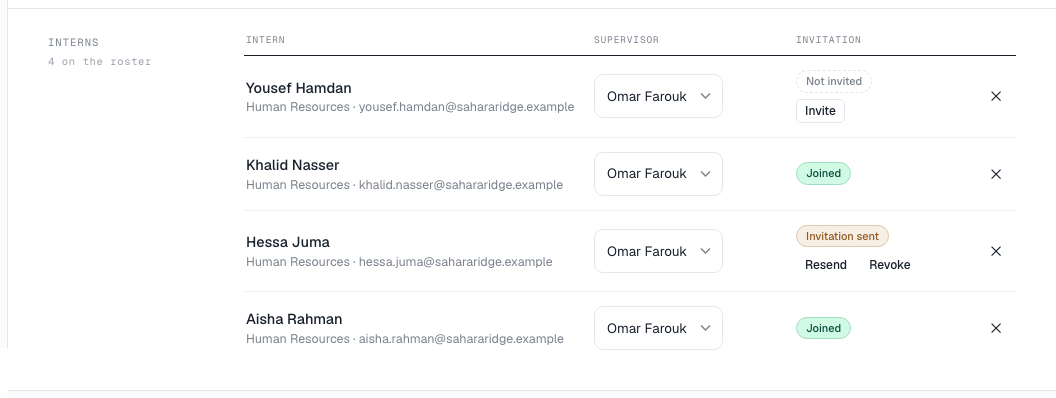
Resend sends a fresh link, and the old one stops working at once. Revoke cancels the invitation.
Send an invitation
- Open the programme’s Interns or Supervisors screen.
- On the person’s row, choose Invite (1).
The person receives an email inviting them to the programme, with a link to accept. Their status changes to Invitation sent.
After inviting, a Copy link button appears so you can also pass the link on yourself — in a chat message, for instance. If it reads Copy link (no email sent), no email went out, and the status reads Link ready — not emailed: copy the link and send it to the person yourself.
How invitation links work
- A link works once, and only for the email address it was sent to. The person must sign in, or create an account, with that same address.
- A link expires after 14 days.
- Resend (2) sends a fresh link and restarts the 14 days. The previous link stops working at once.
- Revoke (3) cancels the invitation immediately. The row returns to Not invited, and you can invite again later.
Once someone accepts, their status reads Joined and the buttons disappear.
What the person sees
The link opens Join your programme, which names your company, the programme and their role — for example, “Al Dana Consulting invited you to Summer Internship 2027 as an intern.” Their email is filled in with the invited address and can’t be changed. They choose Create account and join, or sign in with Sign in and join if they already have an account. A new account confirms its address by email first; the confirmation link finishes joining. Then they land on their own dashboard.
Someone already signed in with the invited address, and not yet on any programme, also sees the invitation on their home screen with an Accept button.
Their side, step by step: Join a programme you were invited to.
If something is wrong with the link, they see one of these messages:
- This invitation was issued to a different email address. — they are signed in with another address. They choose Switch account and sign in with the invited one.
- This invitation has expired. — choose Resend on their row.
- This invitation was revoked. — invite them again.
- This invitation has already been used. — they have already joined.
- This invitation link is not valid. — usually an older link replaced by a resend. Send the latest one.
See also: Problems accepting an invitation.