Your profile and your school
Fill in My profile, add a parent or guardian if you are under 18, and link your account to your school.
My profile is yours, not a company’s. Your CV, your applications to openings and your link to your school are all built on it. Every field saves as you change it — there is no Save button. Choose My profile in the menu.
About this page counts what is done — education level, emirate, date of birth, and a parent or guardian if you are under 18 — and names the four things a date of birth opens: Apply to openings, Link a school, Download your CV and Create a record link. At the foot, Where it is read shows your profile as A company, Your CV and Your school get it.
Until your date of birth is in, the page reads Incomplete — date of birth needed, and your CV can’t be saved or shared, your school can’t confirm you, and you can’t apply to openings.
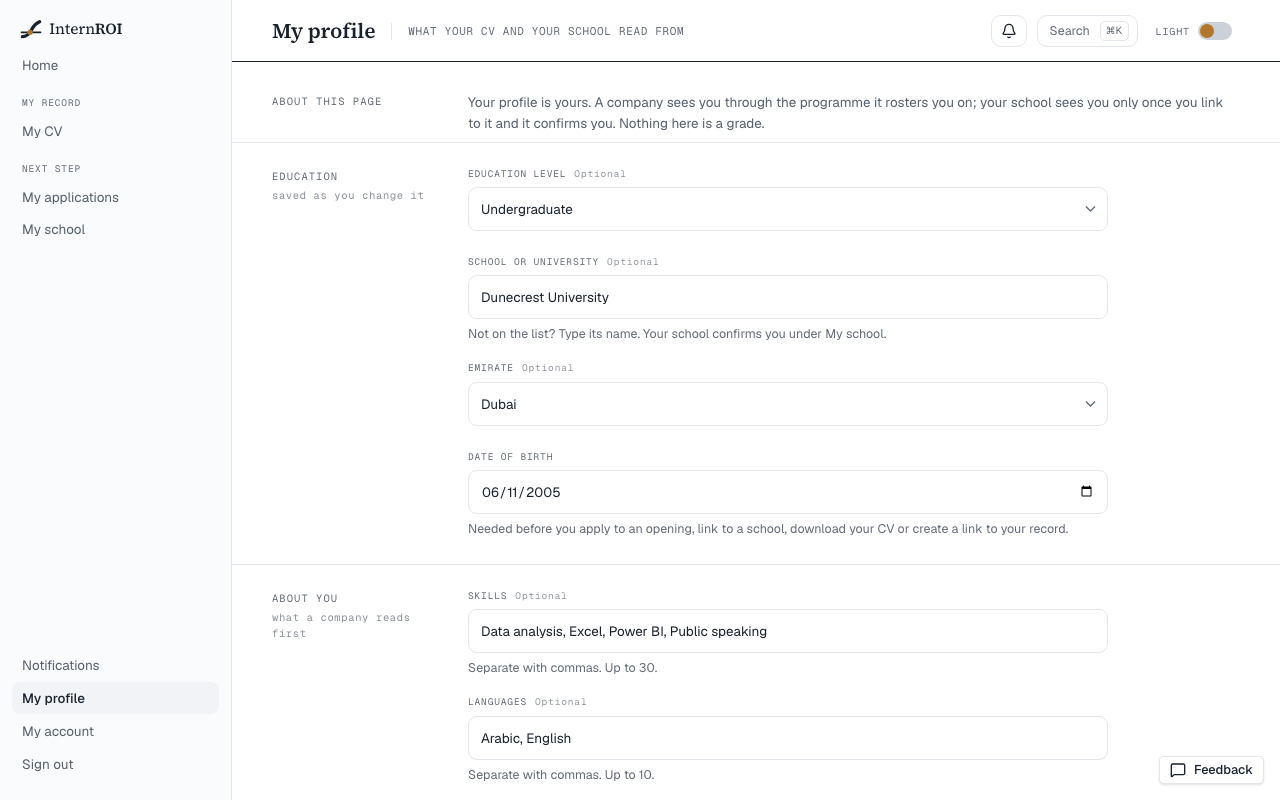
Education
- Education level — High school, Vocational school, Undergraduate, Postgraduate or Other.
- School or university — start typing where you study. Once you have typed two characters, a list of UAE institutions opens, each with its type and emirate. Choose a name with the mouse, or with the arrow keys and Enter; a name you choose is saved at once.
- Emirate.
- Date of birth — needed before you apply to an opening, link to a school, download your CV or create a link to your record.
Not on the list? Type the name in full: it is saved when you pause. A typed name that matches one on the list, whatever its capitals, is saved in the list’s spelling.
If you are under 18
When your date of birth makes you under 18, a Parent or guardian block appears with a Name and an Email. Fill in both: your date of birth is saved together with them. Until both are in, the date shows Interns under 18 need a parent or guardian on the profile, and it is not saved.
No company sees your date of birth or your guardian. When you apply to an opening, the company sees only that you are under 18. Your guardian’s details are cleared from your profile 30 days after your 18th birthday — see How long data is kept.
About you
- Skills — separate them with commas, up to 30. When a company marks your placement complete, your supervisors can endorse the skills listed here, and only those.
- Languages — separated by commas, up to 10. Press one of the languages offered under the box (Arabic, English, Hindi, Urdu, Tagalog, French) to add it; type any other.
- Summary — up to 600 characters: what you are looking for and what you bring.
Companies read this part first when you apply.
Ratings
Share my supervisors’ ratings and endorsements on my CV and record is off until you switch it on. While it is on, your CV and any record link you share show your supervisors’ ratings, whether they would work with you again, the skills they endorsed, your school, and a certificate for each completed placement. Switch it off and all of that leaves every link at once. See Your CV and Your verified record.
Link to your school
Linking lets your school follow your placement. It takes two steps: you consent, then your school confirms you. Your school must already have an account on InternROI.
- Choose My school in the menu. Under Find your school, type its name in School or university and choose Search.
- Choose Link beside your school.
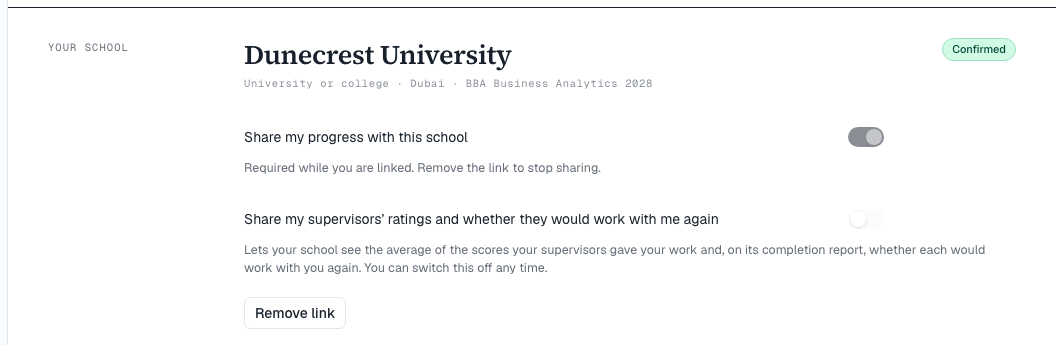
- Read the two switches:
- Share my progress with this school — always on: you can’t link a school without it.
- Share my supervisors’ ratings and whether they would work with me again — off unless you switch it on.
- Choose Confirm. You will see Linked. Your school confirms you next.
Your school’s card reads Waiting for your school to confirm until it does, then Confirmed. Wrong school? Before you confirm, choose Choose another school.
Confirm stays greyed out until your profile has a date of birth, and a guardian if you are under 18. Choose the My profile link in the notice, fill it in, then choose Back to linking … to return.
If your school added you first
Your school may add you by email address. You then get an email, Your school added you on InternROI. Create an intern account with the address it was sent to, or sign in. Your home page shows Your school has added you — confirm it’s you: choose Review and confirm, set the switches, and choose Confirm — or This isn’t my school to decline. Your school still confirms you afterwards.
If your school gave you its link or QR code instead, it opens this screen with your school already chosen.
You can be linked to one school at a time. If another school adds you while you are linked, My school shows Another school added you under your school’s card. Choose Decline to turn it down. To accept it instead, remove your current link first (see below), then confirm the new school on My school. If several schools have added you, each is shown, and Review this one instead opens the one you choose.
What your school sees
Nothing until it has confirmed you. Then, for your placement, it sees facts: the company and programme, the dates, the planned hours, how many tasks you have, how many were accepted and how many are overdue, when you last submitted work, how many weeks of reflections you wrote and when the last was — the count, never the words — and whether your final report is in. As the switch puts it: Your school sees tasks, hours, reflections and completion — never pay or company figures.
With Share my supervisors’ ratings and whether they would work with me again on, it also sees your supervisors’ average rating, and a completion report it issues can say whether each supervisor would work with you again. It never sees your submitted work or a KPI. My school shows this as What your school sees: what it sees once linked, what only if you switch it on, and what never. The school’s side is in Link your students.
What it asks of you
Once your school has confirmed you, What it asks of you lists its requirements — for example Minimum hours or Weekly reflections — with what each asks, where you are so far, and the same verdict your school sees: met, not yet, not met, or needs consent for a rating you have not shared. Weekly reflections and the final report are counted from My reflections.
Change or remove the link
- Switch Share my supervisors’ ratings and whether they would work with me again on or off on your school’s card at any time.
- To stop sharing altogether, choose Remove link, then Remove the link — or Keep it. Your school no longer sees your progress, and you can link again later. A completion report it has already issued stays as it was.
Messages you might see
- Interns under 18 need a parent or guardian on the profile — fill in both guardian fields.
- The list could not be searched just now. — type the name in full; it is still saved.
- Could not save the profile. Please try again.
- No school by that name is on InternROI yet. Ask your coordinator to set the institution up, or try another spelling.
- Add your date of birth on My profile before linking a school. If you are under 18, a parent or guardian goes on the profile too.
- You are already linked to this school
Next: your CV.