Create your intern account
Sign up as an intern on your own, before any company invites you, and see what you can do with it.
An intern account is yours, not a company’s. You don’t need an invitation to make one, and it is free. With it you keep a profile, link your account to your school, build a CV from your placements, and apply to openings that companies publish.
Invitation or your own account?
- A company invited you to a programme. Use the link in your invitation email. It creates your account, or signs you in, and puts you on the programme in one go. See Join a programme you were invited to.
- You are looking for a placement, or your school asked you to sign up. Create your own account, as below.
- Set up InternROI for your company is not for you — it creates a company account.
Already joined a programme as an intern, by invitation? Your account is an intern account too: My profile, My school, My CV and My applications are already in your menu. You don’t need a second one.
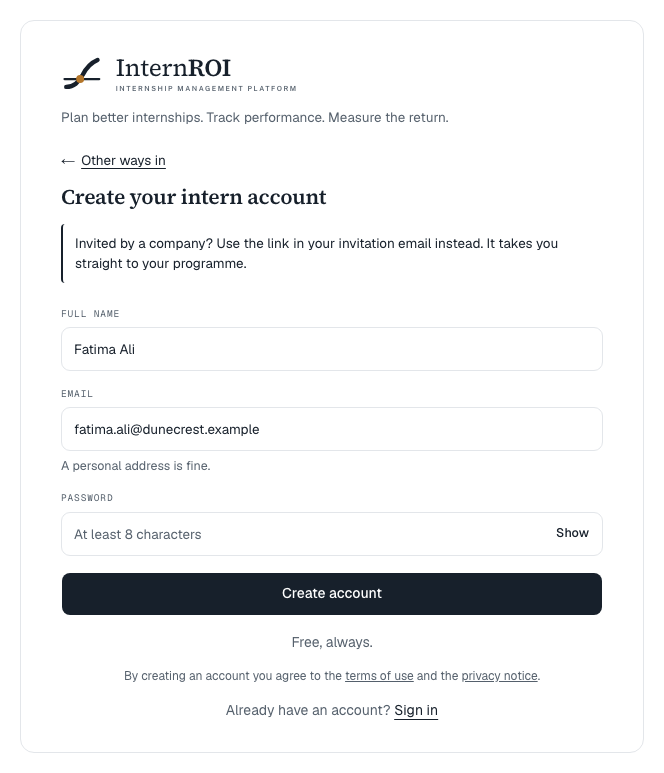
Create your account
- Go to Create your intern account — or, on Sign in, choose Create an intern account under New to InternROI?
- Enter your Full name and your Email — A personal address is fine.
- Choose a Password of at least 8 characters.
- Choose Create account.
- You will see Check your inbox — we sent a confirmation link to finish setting up. Open the email and choose the link. If it does not arrive, check your spam folder.
The confirmation link signs you in. Opened it in a different browser and see That link has expired or was already used.? Your address is confirmed all the same: sign in, and you carry on where you were going.
If you started from your school’s link or an opening
- Your school’s link or QR code opens the same page, which names your school: You’re joining … on InternROI. Create your account, then confirm your school — … confirms you. After you confirm your email, you land on that school’s consent screen. See Link to your school.
- An opening’s Create an account brings you back to that opening once your email is confirmed. See Apply for a placement.
What you see first
Your home page reads Welcome, … and Your intern account, with one card: No placement yet. Choose Complete my profile to start.
Your menu grows as you go:
- Once you have saved something on My profile, the menu shows My CV, My applications, My school and My profile.
- Once you join a company’s programme, My tasks, My KPIs, My reflections and My record are added. See Getting started as an intern.
Your home page also tells you when something is waiting: Your school has added you — confirm it’s you, and your newest applications under Your applications. While a company’s invitation is waiting for you, your home page shows Your invitation is waiting instead, with Accept.
Messages you might see
- An account with this email already exists — sign in instead. — choose Sign in under the form. Forgotten the password? See Sign in and reset your password.
- We already sent a confirmation link to that address — check your inbox, and your spam folder. You can ask for another in a minute.
- That password is too easy to guess — try a longer one.
- Too many sign-up attempts. Try again in … — sign-ups pause for a short while, and the message says how long.
- Sign-ups are currently closed. — new accounts are paused for the moment. Try again later.
- We couldn't finish setting up your account — that's a fault on our side, not with your details. Please try again in a few minutes.
Next: fill in your profile.