Generate a report
Create a frozen, versioned report of a programme and print it.
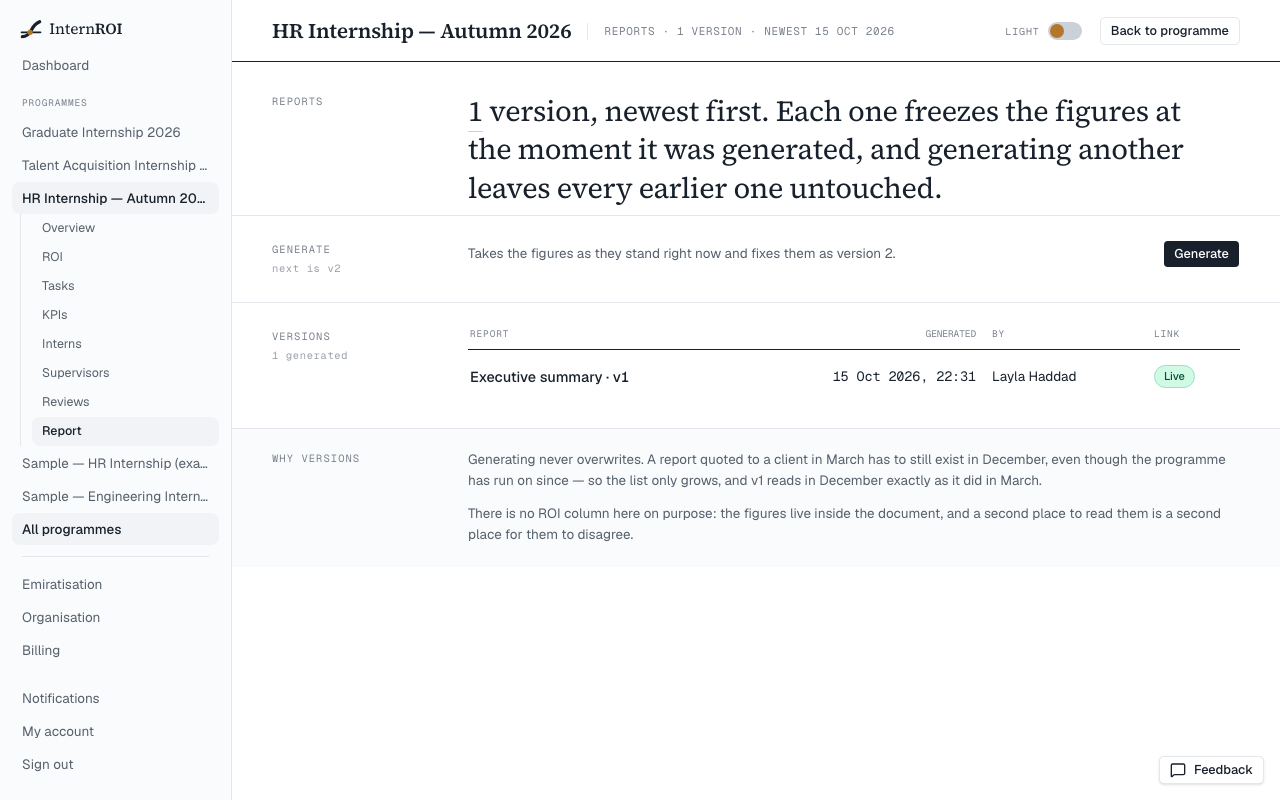
A report fixes a programme’s figures at the moment you generate it, as a numbered version. Later versions never change earlier ones, so a report quoted in March still reads the same in December.
Only company admins can generate reports, and generating one needs an active plan — see Plans.
Generate one
- Open the programme and choose Report in its menu.
- In the Generate band, choose Generate (1).
The new version opens. The Versions table lists every version, newest first, with who generated it and whether it has a live share link.
What a report contains
- The programme: status, interns, supervisors and launch date.
- Return on investment — the headline, the verdict, the cost and value lines, and strategic value reported separately — from the baseline saved at the time.
- Delivery — tasks, progress, overdue work and work awaiting review.
- Performance against KPIs — each KPI’s target and actual, and the weighted achievement.
- About these figures — the warnings that apply.
- The methodology version that produced the figures, and the baseline they came from.
- Appendix — inputs — every value the ROI baseline was calculated from, as it stood when the baseline was saved, so the figures can be checked against what produced them. Reports generated before the appendix existed don’t have one; generate a new version to get it.
It does not include individual interns’ work. If the programme has no baseline yet, the report covers delivery only.
Print or save as PDF
Choose Print or save as PDF and use your browser’s print dialog — choose Save as PDF as the printer to keep a file.
Messages you might see
- There is nothing to report yet. — the programme has not launched.
- A report of record needs an active plan — your figures stay live on the ROI screen. Choose See plans to pick a plan. Reports you already generated stay readable.
- The sample report needs a demo key — see The sample programmes.
Next: share a report.