Set up your institution
For school and university staff: create your account, set up your institution and invite colleagues.
A school, university or vocational school has an account of its own on InternROI. In it you link your students, set what a placement must meet, follow how each placement is going and issue completion reports. The account is for staff, and the person who sets it up becomes its admin.
Create your account
- Go to Sign in. Under New to InternROI?, choose Set up your institution.
- On Set up your institution, fill in Full name, Email and a Password of at least 8 characters.
- Choose Create account. You will see Check your inbox — we sent a confirmation link to finish setting up.
- Open the email and choose the link. You land on Welcome to InternROI, which shows how it works in four steps: the student consents, then you confirm, follow and issue reports. Choose Set up my institution.
Use an account that is not already a company’s: one account holds one organisation.
Set up your institution
The screen is Institution setup.
- In Find your institution, start typing its name. From the second letter, a list of UAE universities, colleges, vocational and secondary schools opens, each with its type and emirate.
- Choose your institution, with the mouse or with the arrow keys and Enter. Its name is filled in, and Type and Emirate are set to match. You can still change either.
- Not on the list? Type its full name and carry on — Not on the list? Type its name: you can still set up.
- Under the name, a line says On the UAE list or Not on the list. For a name on the list, Check first reminds you to ask a colleague who has already set it up to invite you instead.
- Choose Type: University or college, High school, Vocational school or Other. A pick from the list fills it, marked from the list. It cannot be changed on the Organisation screen afterwards (Can’t change later) — if it is wrong later, tell us.
- Emirate is optional: choose one, or press it again to clear it. Website is optional and only InternROI sees it. Country is always United Arab Emirates.
- Choose Create institution. You land on Students, your home, which says … is set up. You are its admin.
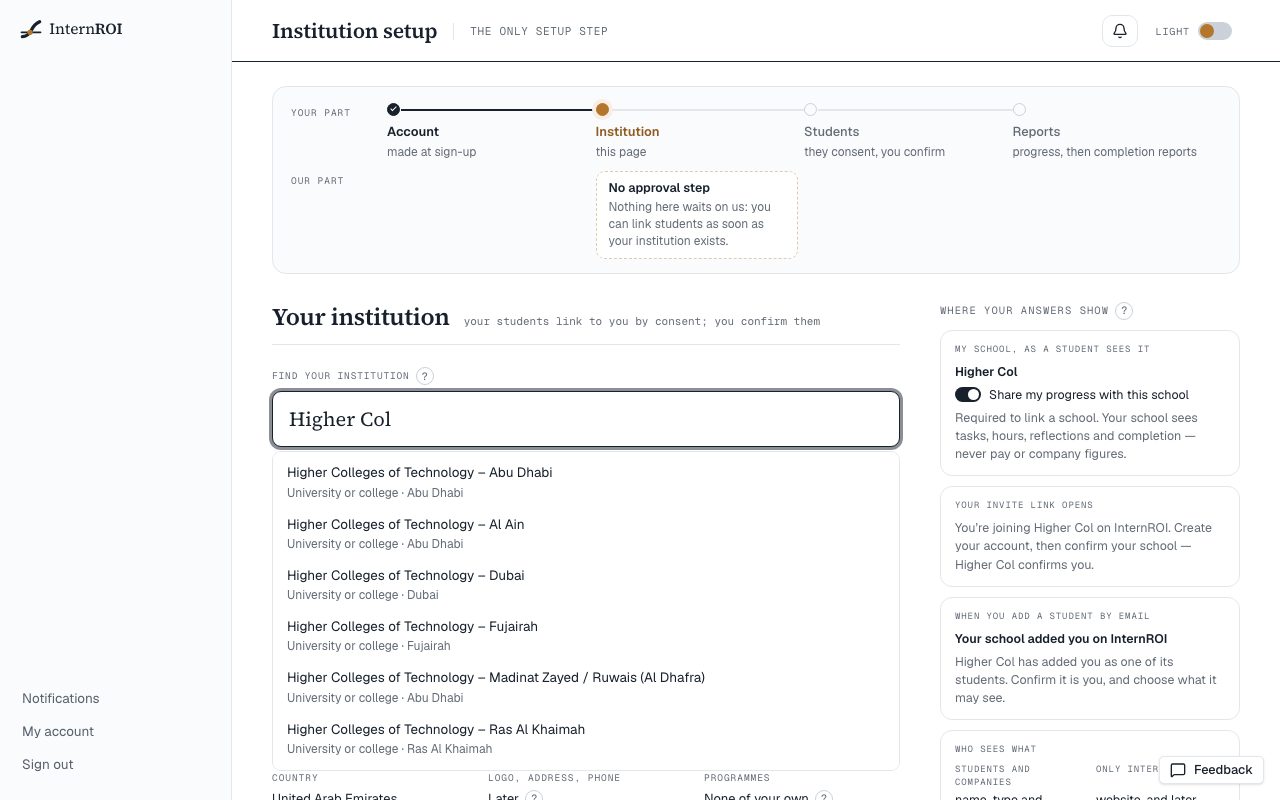
There is no approval step: you can link students straight away. Students find you on their My school screen by the name you saved.
On the list or not
A name is on the list when it is the list’s name, ignoring capitals and spaces at either end. A name on the list is saved in the list’s spelling, so “ zayed university” is saved as “Zayed University”. A name that is not on the list is kept as you typed it. Everything works the same either way.
Invite colleagues
Every admin of your institution can do everything: link and confirm students, set requirements, read progress, issue reports and invite further admins.
- Choose Organisation in the menu.
- In the Team band, choose Invite an admin.
- Enter Their work email and choose Send invitation.
You will see Invitation sent, with the link in case you want to pass it on yourself. The link works once, expires after 14 days and can only be accepted with that address. Pending invitations are listed in the band with Resend and Revoke. How your colleague accepts: Join a programme you were invited to — an invited admin joins the same way.
Change your details
On Organisation, change Institution name, Emirate, Logo, Website, Office address and Phone. Only InternROI sees the last three — students and companies see your name, type and emirate. Every field saves as you change it. A new name is matched against the list again, in the same way.
Messages you might see
- An account with this email already exists — sign in instead. — sign in with that address instead.
- Start with http:// or https:// — the website needs its full address.
- The list could not be searched just now. — you can still type the name.
- This account holds a demo company. Set up your institution from a new account. — create a new account for the institution.
- You've been invited to … — accept it instead? — an invitation is waiting for your address. Accept it if you came for that; otherwise choose Set up my institution anyway.
- Sign-ups are currently closed. — new accounts are paused for the moment. Try again later.
- This school's account is suspended. You can read everything here, but nothing new can be done until it is reinstated. Contact support@internroi.com. — shown on every page while your account is paused. You can still read your students and reports.
Next: link your students.